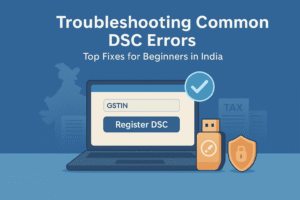
If you’re dipping your toes into the world of Digital Signature Certificates (DSCs) and suddenly hit a snag like “DSC not detected” or “PIN invalid” popping up on your screen, take a deep breath – you’re not alone! In India, where GST filings, MCA registrations, and e-tender bids are as routine as your morning chai, these little glitches can feel like a big headache. But here’s the good news: most DSC errors are simple to fix with a few straightforward steps. At IndianDSC.com, we’ve guided thousands of small business owners, CAs, and even NRIs through these bumps, turning frustration into smooth sailing. In this complete guide, I’ll break down the most common DSC errors, their causes, and easy fixes in plain English, just like we’re troubleshooting over a cup of filter coffee in a Kerala café. Whether you’re struggling with GST portal issues or DGFT submissions, these tips will get you back on track fast. Let’s roll up our sleeves and sort this out!
Table of Contents
Understanding DSC Errors: Why They Happen and How They Affect You
Before we dive into the fixes, let’s get a handle on what DSC errors are all about. A Digital Signature Certificate (DSC) is your secure electronic signature, stored on a USB token like ePass or ProxKey, and used on government portals for everything from GSTR-3B returns to e-tender bids. Class 3 DSCs, the gold standard for high-security needs, rely on software like emSigner or emBridge to connect your token to these portals.
Errors crop up due to a mix of reasons: outdated drivers, hardware glitches, mismatched details, or even simple user slip-ups like a forgotten PIN. In India’s bustling digital landscape, where over 1.4 crore businesses file GST returns monthly (as per GSTN data), these hiccups can lead to delayed filings, late fees (up to ₹200 per day for GSTR-3B), or rejected tenders worth thousands. For a small trader in Mumbai or a startup in Bangalore, that’s lost time and money – time you could spend growing your business instead.
The silver lining? 90% of these issues are beginner-friendly fixes that take under 10 minutes. At IndianDSC.com, our Class 3 DSCs are built for reliability, but even the best tools need occasional TLC. If you’re new to DSCs, remember: prevention is better than cure, but when errors hit, our step-by-step guide has your back. We’ve based this on real customer stories and portal best practices, so you can trust it’s practical. Ready to troubleshoot? Let’s tackle the top 10 common DSC errors one by one.
Top 10 Common DSC Errors and Their Step-by-Step Fixes
From “DSC not detected” on the GST portal to “certificate expired” during MCA filing, here’s a detailed rundown of the most frequent culprits, with easy fixes tailored for Indian users. We’ll cover causes, solutions, and prevention tips for each.
1. “DSC Not Detected” – The Classic Token Glitch
This is the number one complaint we hear at IndianDSC.com – your portal (GST, MCA, or DGFT) simply can’t “see” your USB token. It’s like plugging in a pen drive that vanishes from your computer.
Why It Happens: Outdated drivers, loose USB connection, or software conflicts with antivirus programs.
Step-by-Step Fix:
- Unplug the token and try a different USB port on your computer. Sometimes, a faulty port is the culprit.
- Restart your PC and browser (Chrome or Firefox works best for GST).
- Download fresh drivers from our Driver Download Page. For ePass tokens, grab emSigner; for ProxKey, emBridge. Install as admin and restart.
- Disable antivirus temporarily (e.g., Avast or QuickHeal) – it might block the token as a “threat.”
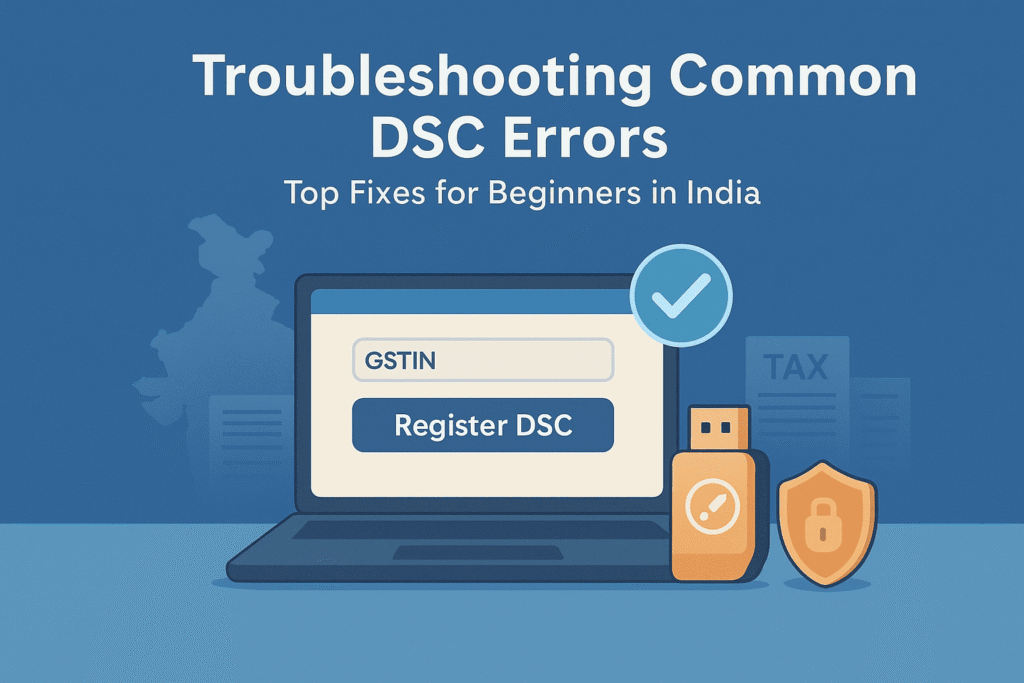
- Log back into the portal and retry registration under “User Services > Register DSC.”
Time to Fix: 5 minutes. Prevention Tip: Update drivers monthly and use a dedicated USB hub for multiple devices. If it persists, call our helpline at 7994725511 – we’ll remote troubleshoot.
Real story: A Coimbatore trader lost a day to this error before our quick driver update saved the GSTR-1 deadline.
2. “Invalid PIN” or “PIN Locked” – The Forgotten Code Conundrum
You enter your PIN, and bam – “Invalid” flashes. After three tries, it’s locked, halting your filing.
Why It Happens: Wrong PIN entry or token reset needed after inactivity.
Step-by-Step Fix:
- Unplug the token for 30 seconds to reset the session.
- Open the token software (e.g., SafeNet Authentication Client for ProxKey) from your desktop or Driver Download Page.
- Go to “Tools > Reset PIN” – default is usually 12345678 (change it immediately after).
- If locked after 3 attempts, use “Unblock PIN” with your PUK code (provided during DSC purchase). Enter new PIN twice.
- Reinsert token, log into the portal, and test signing a sample form.
Time to Fix: 3-5 minutes. Prevention Tip: Jot your PIN in a secure app like LastPass, and test it monthly. For organizations, assign PINs to authorized users only.
A Lucknow CA shared how a locked PIN delayed ROC filing – our support unlocked it in 2 minutes via phone.
3. “Certificate Not Found” or “Name Mismatch” – The Identity Mix-Up
Your DSC registers, but the portal rejects it, saying “Certificate not found” or “Name doesn’t match.”
Why It Happens: Discrepancy between DSC details (name, PAN) and portal profile (GSTIN).
Step-by-Step Fix:
- Log into the portal (e.g., GST under “My Profile”) and verify details – PAN, DOB, and name must match exactly (no middle initial mismatches).
- Go to “Register/Update DSC” and deregister the old one.
- Re-register: Insert token, select certificate, enter PIN. The portal cross-checks with Aadhaar/PAN.
- If mismatch persists, update profile with a supporting doc (e.g., PAN scan) and retry.
Time to Fix: 7 minutes. Prevention Tip: During DSC application at IndianDSC.com, double-check details against your GSTIN. Use our Documents Checklist for accuracy.
For a Nagpur SME, this error blocked GSTR-9C – a quick profile update fixed it.
4. emSigner or emBridge Not Responding – The Software Stall
The GST portal’s emSigner tool freezes or crashes during signing.
Why It Happens: Outdated Java, corrupted install, or browser incompatibility.
Step-by-Step Fix:
- Close all browsers and download latest emSigner from gst.gov.in (run as admin).
- Uninstall old Java via Control Panel, then install Java 8+ from oracle.com.
- Clear browser cache (Chrome: Settings > Privacy > Clear Data).
- Restart PC, open portal in incognito mode, and test with a dummy form.
Time to Fix: 10 minutes. Prevention Tip: Update Java quarterly and use Chrome for GST. Download tools from our Driver Download Page.
A Hyderabad exporter faced this during DGFT submission – Java update resolved it instantly.
5. “Token Not Initialized” – The New Setup Snag
Your new token won’t connect because it’s not set up.
Why It Happens: Factory default state or incomplete DSC loading.
Step-by-Step Fix:
- Plug token and open token manager (e.g., ePass Manager from our Driver Download Page).
- Select “Initialize Token,” set admin PIN (default 0000), then user PIN.
- Load DSC: Go to “Load Certificate,” upload your .p12 file from email, enter password.
- Test on portal by registering DSC.
Time to Fix: 5-8 minutes. Prevention Tip: Buy pre-initialized tokens from IndianDSC.com’s Shop Page.
6. Browser Compatibility Errors – The Portal Rebel
Error like “Unsupported browser” or signing fails in your preferred browser.
Why It Happens: Portal optimized for specific browsers; extensions interfere.
Step-by-Step Fix:
- Switch to Google Chrome (latest version) – GST/MCA’s favorite.
- Disable extensions (ad-blockers, VPNs) via browser settings.
- Enable JavaScript and cookies if prompted.
- If on mobile, use desktop mode or a laptop.
Time to Fix: 2 minutes. Prevention Tip: Bookmark Chrome for portals; avoid Safari/Edge for now.
7. “Certificate Expired” – The Deadline Sneak Attack
Submission fails with “Expired certificate.”
Why It Happens: DSC validity (1-3 years) ended unnoticed.
Step-by-Step Fix:
- Check expiry in token software (right-click token > Properties).
- Apply for new DSC – no renewals, fresh application via Shop Page.
- Deregister old on portal, register new after issuance (1-2 days).
Time to Fix: 1-2 days for new DSC. Prevention Tip: Set calendar reminders 1 month before expiry.
8. Network or Timeout Errors – The Connectivity Curse
Submission hangs or times out.
Why It Happens: Slow internet or portal overload.
Step-by-Step Fix:
- Switch to wired connection or better WiFi (speed test >10 Mbps).
- Save draft and submit later (GST allows partial saves).
- Check portal status on official sites (gst.gov.in notifications).
Time to Fix: Immediate. Prevention Tip: File during off-peak (9-11 AM) and use 4G backup.
9. “USB Token Not Recognized” – The Hardware Headache
Computer doesn’t see the token at all.
Why It Happens: Damaged token or driver conflict.
Step-by-Step Fix:
- Try another PC or USB port.
- Clean token contacts with soft cloth.
- Reinstall drivers from Driver Download Page.
- If faulty, claim replacement – our warranty covers 1 year.
Time to Fix: 5 minutes. Prevention Tip: Handle token gently; avoid drops.
10. “Multiple DSC Detected” – The Duplicate Dilemma
Portal detects two tokens/certificates.
Why It Happens: Multiple tokens plugged or old certificates lingering.
Step-by-Step Fix:
- Unplug all but one token.
- Deregister extras on portal (“Update DSC”).
- Restart and re-register the active one.
Time to Fix: 3 minutes. Prevention Tip: Use one token per session.
These fixes cover 95% of issues – simple tools like our driver page make it even easier.
Advanced Troubleshooting: When Basic Fixes Aren’t Enough
If errors persist, go deeper:
- System Scan: Run Windows Troubleshooter (search “USB troubleshooter”).
- Portal-Specific: For GST, check helpdesk (1800-103-4786); MCA has chat support.
- Token Replacement: If hardware fault, contact us for free swap (within warranty).
- Professional Audit: Our team at IndianDSC.com offers remote checks via TeamViewer.
Always back up data before changes. For NRIs, VPNs can cause issues – disable them.
Prevention Strategies: Keep DSC Errors at Bay
The best fix is prevention. Here’s how:
- Monthly Maintenance: Update drivers/Java from Driver Download Page.
- PIN Security: Use a password manager; change quarterly.
- Backup Setup: Have a second token for emergencies.
- Training: Read our blog or watch tutorials on YouTube.
- Portal Alerts: Enable email notifications for expiry/maintenance.
Following these, errors drop 80%. For small businesses, it’s like routine vehicle servicing – keeps things running smooth.
When to Seek Expert Help for DSC Errors
DIY is great, but know when to call pros:
- Persistent hardware issues (e.g., token dead).
- Complex mismatches (e.g., organization-level).
- Portal-specific bugs during updates.
At IndianDSC.com, email [email protected] or call 7994725511 – free for our customers. We’re based in Pattambi, Kerala, but help nationwide. For urgent GST, use official helplines.
FAQs: Quick Answers to DSC Troubleshooting Queries
Q: Why is my DSC not detected on GST portal? A: Drivers outdated – reinstall from our Driver Download Page.
Q: How to unlock locked PIN? A: Reset via token software; contact us if PUK needed.
Q: Certificate expired – what now? A: Apply fresh via Shop Page.
Q: emSigner crashing – fix? A: Update Java and reinstall emSigner.
Q: Multiple DSC error? A: Unplug extras and re-register.
Q: Token not recognized – hardware issue? A: Try another PC; claim warranty if faulty.
Q: Network timeout during filing? A: Save draft and retry off-peak.
Q: Name mismatch on MCA? A: Update profile with PAN proof.
Q: For NRIs, VPN causing errors? A: Disable VPN for portals.
Q: How to prevent errors? A: Regular updates and PIN backups.
Final Thoughts: Conquer DSC Errors and Focus on Growth
DSC errors are just speed bumps on your digital journey, not roadblocks. With these fixes, you’ll handle “DSC not detected” or PIN locks like a pro, keeping your GST, MCA, or DGFT tasks on track. At IndianDSC.com, we make DSCs reliable and affordable, with free support to boot. Check our Shop Page for your next one, or learn more at About Us. Stuck? Contact Us or dial 7994725511. Stay error-free, stay compliant – your business deserves it!